Sign up for Cambium AI
If you don't already have an account, create one at app.cambium.ai before continuing. You'll use the same login to authorize the MCP in step 4.
Connect Cambium AI to Claude in five short steps. In under five minutes you'll be testing product ideas against synthetic personas built from real public data.
If you don't already have an account, create one at app.cambium.ai before continuing. You'll use the same login to authorize the MCP in step 4.
Tell Claude where to find the Cambium MCP server. Pick how you use Claude.
In Claude Desktop, the Cambium MCP is added as a Custom Connector. This is a two-step flow:
https://api.app.cambium.ai/mcp/product-manager/mcp
Admin-only. Only the admin of the Claude team account can add custom connectors. If you don't see Add custom connector, ask your team admin to run the steps on the left. Once it's added, you'll find it in your connector library automatically.
Once your admin has added the custom connector, it shows up in your personal Connector library, ready to enable.
Open Claude Desktop and go to Settings → Connectors. You should see Cambium AI Product Manager in the list with a Connect button next to it.
Don't see it? Your team admin hasn't added it yet. Point them at step 2 above. Custom connectors propagate to all team members the moment the admin saves the connector.
Leave Settings open. You'll authenticate from here in step 4.
The first time you connect, you will need to authenticate with your Cambium AI account.
From the Connectors list, click Connect next to Cambium AI Product Manager. A browser window opens to app.cambium.ai.

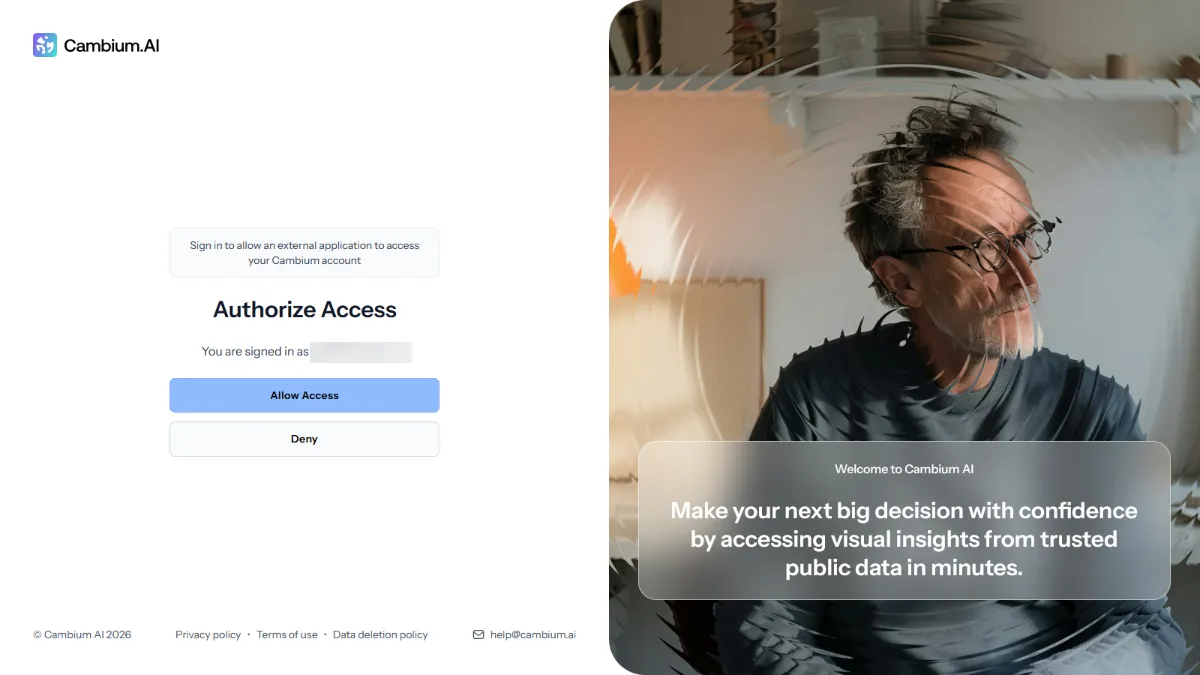

The connector now shows Connected in your library and stays signed in across restarts. Each teammate authenticates separately with their own Cambium AI account.
Confirm the MCP is live before you start using it.
Back in Settings → Connectors, the Cambium AI Product Manager connector should now show a Disconnect button and a list of available tools.

end_session, get_business_case, recall_context, record_decision, research_product_idea, set_business_case, set_phase) are listed under Tool permissions.To kick things off, start a new conversation and ask: "Help me set up my business case." Claude will walk you through a short interview to capture your company context — this only happens once, and every research run after will use it.
You're set.
The MCP provides a small set of tools, but you never call them directly. Talk to Claude in plain language and it picks the right one. Here are common ways teams use it.
Understand objections, willingness to pay and likely points of friction before you commit to building.
Try headlines, taglines and propositions against your target personas to see which performs best.
Explore alternative directions, adjacent markets or repositioned offerings before committing engineering time.
Four research agents run in parallel (audience sizing, persona interviews, market research and regulatory) and return a clear recommendation.
A short interview captures your company, products, business model and target market, so every piece of research reflects your situation.
Record direction changes, deprioritised ideas and chosen bets, along with the reasoning behind each. Builds a decision log you can revisit later.
The most common hiccups and how to clear them.
Authentication didn't stick. If the server still shows needs authentication after you signed in, fully quit Claude Code or Desktop and reopen it. The session needs to reload to pick up the new credentials.
Don't see the connector in Claude Desktop? Only the Claude team admin can add custom connectors. Once they have, it propagates to everyone's Connector library. Ask them to confirm the URL is https://api.app.cambium.ai/mcp/product-manager/mcp.
claude: command not found. The Claude Code CLI isn't installed or isn't on your PATH. Install it from the Claude Code docs and reopen your shell.
Wrong Cambium account? Disconnect the connector (Desktop) or re-run the authenticate step (Code). The browser will let you switch accounts before approving. The MCP only honors the most recent token.
Start over. In Claude Code, run claude mcp remove cambium-ai--product-manager and repeat step 02. In Claude Desktop, ask your admin to remove the custom connector and re-add it.
Email us and we'll get you unblocked.